Edit your App Store product page without opening App Store Connect
The App Store page editor puts your product page from App Store Connect on your desktop: versions, screenshots and app previews, texts, app information and App Review details. Changes stay as drafts on your computer, next to a live preview of the page, until you press Save.

What you get
Screenshots and app previews
Drop files to upload them, drag to reorder, and switch between iPhone, iPad, Apple Watch and other sizes per language. A file that doesn’t match Apple’s sizes for that slot is refused before it’s sent.
A live preview
The page as the App Store shows it, from your draft or from what’s saved, in light or dark appearance, updating as you type.
Drafts until you save
Edits are kept on your computer and marked Unsaved changes. Revert Changes drops them; Save sends them all to App Store Connect at once.
Never over someone else’s edit
If a field changed in App Store Connect after asorocket read it, it isn’t overwritten. You see both values and choose which to keep.
Versions, builds and review
Create a version, pick its build, set how it’s released and its phased release, add it for review, and release it once it’s approved.
History
Every save is kept with the values before and after, so you can see what changed from asorocket and when.
What you need: An App Store Connect API key with the Admin or App Manager role.
Everything on the version page
Pick a version in the sidebar to edit what App Store Connect shows for it: the product page header, screenshots and app previews per device size and language, promotional text, description, keywords, What’s New, support and marketing URLs, and copyright. Each text field counts its characters against Apple’s limits, and the notes above the page list what still stands between the version and review, such as a language without screenshots. Keyword field changes can start in the Metadata lab, where the pressure test checks them; the editor is for the whole page around them.
The other pages of the workspace follow App Store Connect’s own layout. App Information holds the name, subtitle, categories, content rights, age rating and languages. App Review holds the contact, sign-in details and notes App Review reads. App Privacy holds the privacy policy link per language, App Accessibility the features your app supports on each device, and Ratings and Reviews your rating with the reviews to answer.
Uploads through Apple’s asset library
Screenshots, previews and header images go through App Store Connect’s asset library: a file is uploaded once, checked by Apple, and then placed wherever it’s used. The Asset Library page lists every file with its size, whether Apple accepted it and where it’s placed, so the same screenshot can go on your product page, a custom product page, a test and an in-app event without uploading it again. Drop up to 50 files at a time; asorocket checks each against Apple’s sizes for its slot before anything is sent.
Saving, and what happens if someone else edits
Nothing reaches App Store Connect while you edit. Save sends every unsaved change, then reads App Store Connect back to show what it now holds. If a teammate changed a field in App Store Connect after asorocket read it, that field isn’t sent: both values are shown and you choose which one stays. Saving never submits anything for review. That’s a separate button, Add for Review, on a version that can be submitted, once everything is saved.
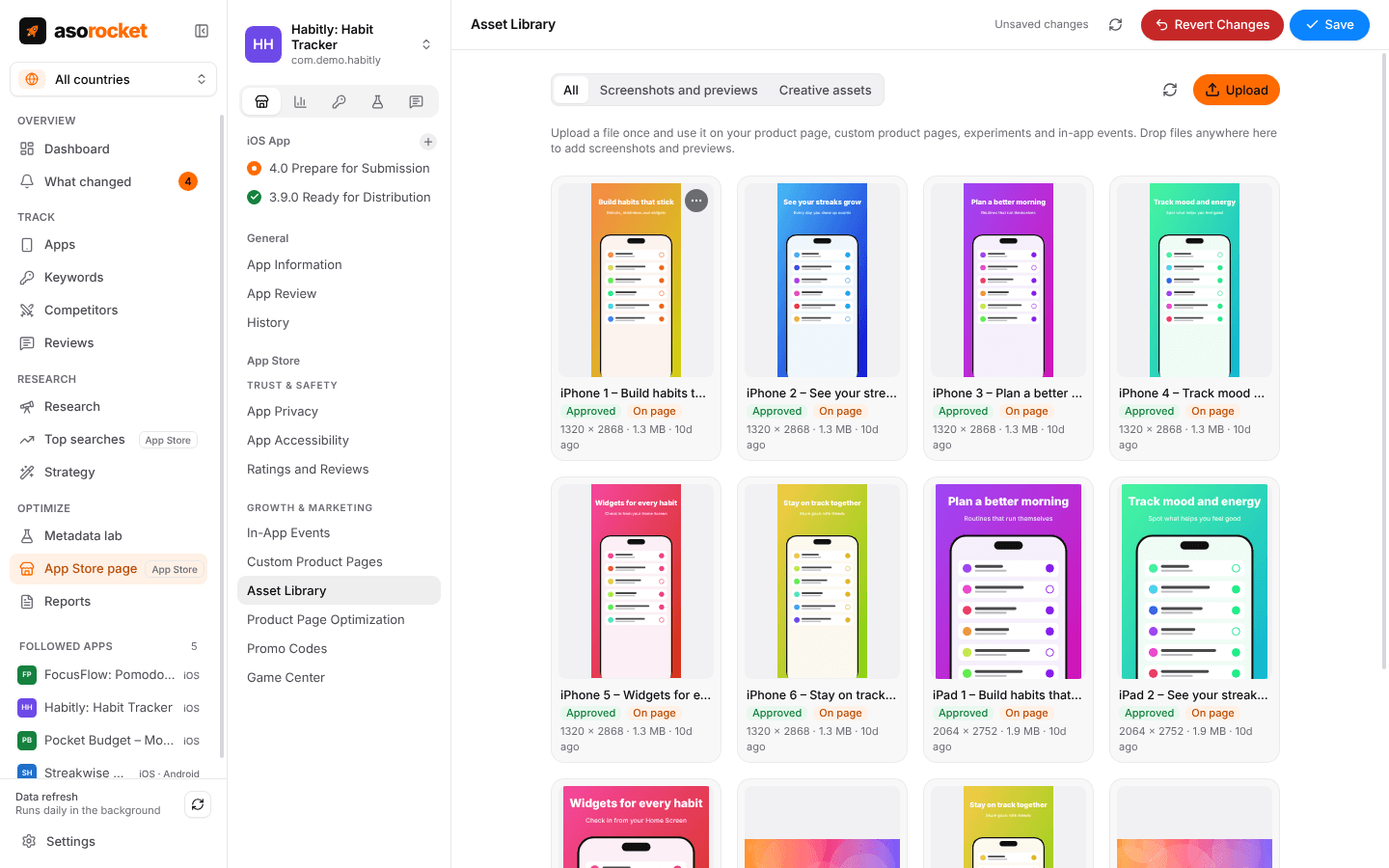
The asset library: upload a file once and place it on the product page, custom product pages, tests and events.
Good to know
What App Store Connect keeps to itself
Apple’s API doesn’t let other apps read or change the data types in your App Privacy details, so those stay in App Store Connect. Achievements and leaderboards are listed but added there too.
Promo codes and Game Center
For offers you created in App Store Connect, generate one-time codes for subscriptions and in-app purchases, download them as a CSV, and deactivate a batch. Game Center can be turned on from the workspace.
Questions about App Store page editor
Can asorocket change my App Store listing?
Only when you send a change yourself. From the Metadata lab, a review screen first shows each field in App Store Connect next to your draft, and only the fields you tick that changed are sent, into the version you’re preparing; every publish can be restored. In the App Store page editor, edits stay drafts on your computer until you press Save, and a field changed in App Store Connect meanwhile is never overwritten. Saving never submits anything for review: that’s a separate button. Both need a key with the Admin or App Manager role. How publishing works.
Does saving submit my app for review?
No. Save only sends your changes to App Store Connect. Submitting is a separate button, Add for Review, on a version that’s ready for it, and you can cancel a submission from the same place.
Can my team keep editing in App Store Connect?
Yes. asorocket reads App Store Connect again before it saves, and a field someone changed there in the meantime is shown to you instead of being overwritten.
Does it work for Google Play listings?
Not this editor. Google Play texts are drafted in the Metadata lab and published through Google Play Console.
Related guides
Measurement · 4 min read
App Store conversion rate: what it is and how to improve it
How conversion rate is measured in App Store Connect, what moves it, and how to tell if a change helped.
Metadata · 3 min read
ASO checklist: what to check before you submit an App Store update
Twenty quick checks for your name, subtitle, keyword field and screenshots before you press Submit.
Metadata · 4 min read
App Store title and subtitle: limits and how to write them
Thirty characters each. How to fit a brand, a keyword and a reason to download.
More features
All featuresIn-app events
Event cards for the App Store, scheduled, localized and submitted for review.
Learn moreCustom product pages and tests
Extra product pages for ads and audiences, and tests of your screenshots.
Learn morePublish to App Store Connect
Push a checked draft into the version you’re preparing, after a careful review screen.
Learn moreMetadata lab
A live ASO score as you type, an automatic keyword field, and a pressure test before you ship.
Learn moreStart with your own app, today
Download asorocket, pick your markets and find your app. You will be tracking your first keywords in about two minutes.
macOS · Windows · Linux