Google Play Console
From a checked draft to your Google Play listing
Connect Google Play Console with a service account you create. Publish a draft’s title, short description and description from the Metadata lab, after a review screen that shows each text as it is now next to your draft, and answer recent reviews.
What you get
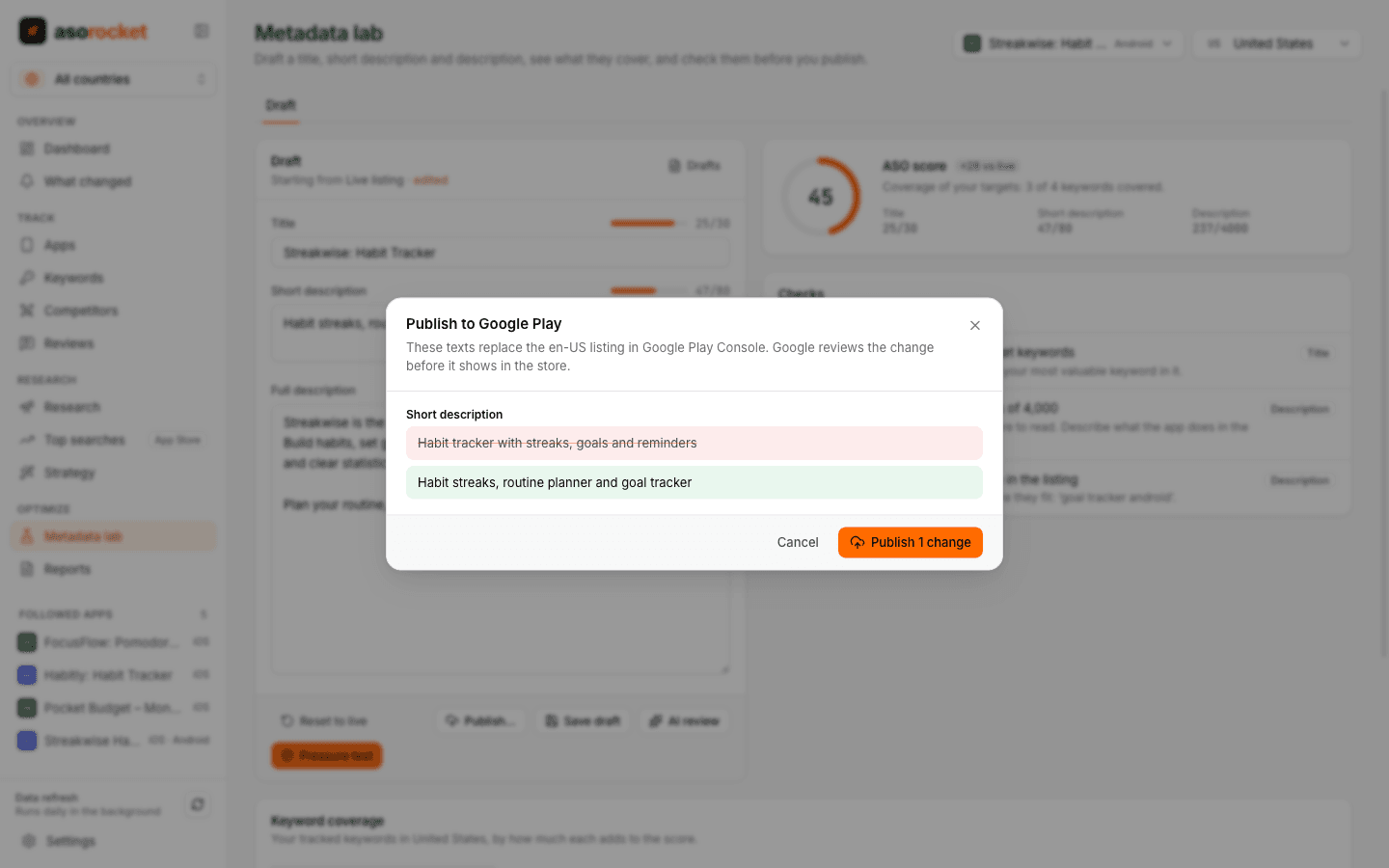
What’s there now, next to your draft
The review reads the listing from Play Console in the draft’s language and shows each text that would change, old above new.
Only what changed
Texts that match the listing are left alone. If nothing differs, there is nothing to publish.
Never over someone else’s edit
If the listing changed in Play Console after the review opened, nothing is sent.
Stopped before it’s sent
An empty or over-long title, short description or description is refused before anything reaches Google.
Reply to recent reviews
The app’s Reviews tab lists the reviews Google’s API offers, with a box to answer each in up to 350 characters, or to replace a reply.
A service account, not your password
You create a service account in Google Cloud and invite it in Play Console. Its key is encrypted by your operating system and only signs requests to Google.
What you need: A Google Cloud service account with a JSON key and the Google Play Android Developer API enabled, invited in Play Console with access to your app.
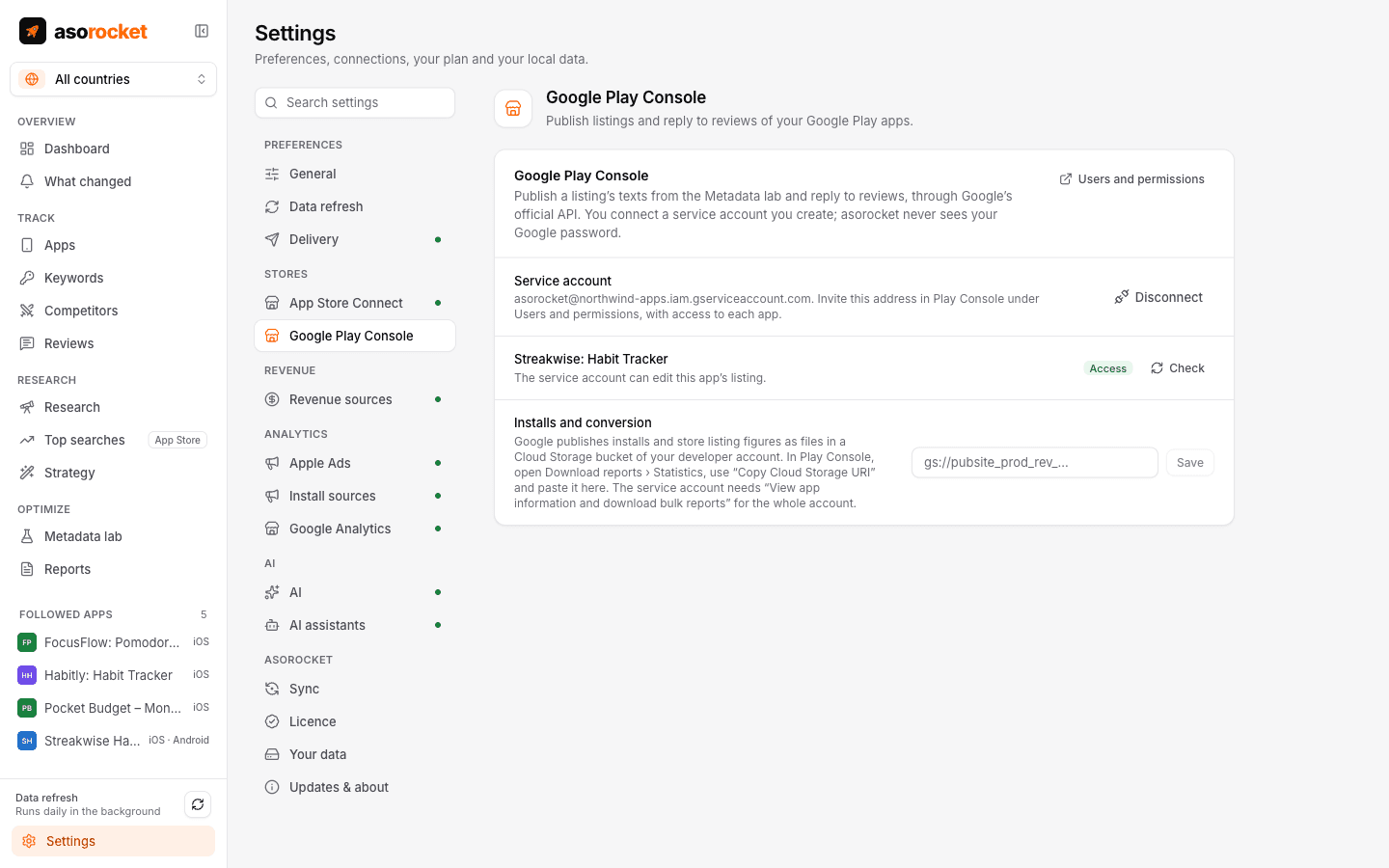
Settings shows which followed apps the service account can edit.
Good to know
Google reviews the change
Publishing sends the texts through Google’s official Play Developer API. Google reviews a listing change before it shows in the store.
About a week of reviews
Google’s API offers only reviews written or changed in about the last week. Older reviews stay readable in the public Reviews view, but can’t be answered from asorocket.
What it doesn’t do
It publishes texts, not screenshots or releases. Installs and conversion come from the report files Google exports, which Google Play Console statistics reads with the same service account.
Related guides
Google Play · 2 min read
Google Play title, short description and description: limits and how to write them
Three fields, all of them read for search. Their limits, what Google’s policy forbids, and where your keywords belong.
Google Play · 3 min read
Google Play ASO vs App Store ASO: what’s different
The same goals, different fields. What Google Play indexes, what the App Store indexes, and how to work on both without copying one listing into the other.
More features
All featuresKeyword rank tracking
Daily positions for every keyword in the App Store’s top 200 and Google Play’s top 30, with changes and history.
Learn moreKeyword research
Score a term, see who ranks, and check up to 1,000 keywords in one background run.
Learn moreMetadata lab
A live ASO score as you type, an automatic keyword field, and a pressure test before you ship.
Learn morePublish to App Store Connect
Push a checked draft into the version you’re preparing, after a careful review screen.
Learn moreStart with your own app, today
Download asorocket, pick your markets and find your app. You will be tracking your first keywords in about two minutes.
macOS · Windows · Linux